Configuring Wireless

  • Subscribe to our RSS feed.
  • Twitter
  • StumbleUpon
  • Reddit
  • Facebook
  • Digg
Showing posts with label MobileIron. Show all posts

Thursday, April 18, 2013

MobileIron: Removing a Deployed Application From iPads

Posted on 3:22 AM by Unknown
This is a simple quick guide to how to remove an application you are already deploying via MobileIron. This is useful if you need to remove an application urgently but don't want to delete it or if, like us, you are using Active Directory groups to control deploying the application but can't wait until AD replication has caught up to remove the application.

Log into MobileIron click on the APPS & CONFIGS tab, then “App Distribution”, select “iOS” in the Platform drop down, and then click on the “Add Name” column so that the applications are sorted in name order;
MobileIron: Deployed Applications
This gives you the list of all the application (both in-house and recommended applications from the iTunes store). It's probably easier to do a search for the application you're looking to remove. I'm going to remove the "Accellion" application you can see above. It's better to search for the exact application you want to remove as the last thing you want to do is just remove the *current* version of an application and roll all your users back to the previous version.

When you've done the search you will be presented with all the versions of the application you have in the system;

MobileIron: App Distribution - Multiple Versions
Select all the applications (click on the tick on the left), and then in the "Actions" menu select "Remove from Label";

MobileIron: Remove From Label dialog
The top item is labelled as "Partial" because the label is applied to one of the applications I've selected but not the other.

Select all the labels (check box at the top left) and then click "Remove".

You should now start to see the "Devices Installed" count decreasing as each device checks in and MobileIron does its stuff.
Read More
Posted in iOS, MobileIron | No comments

Friday, April 12, 2013

MobileIron: Problems Deploying iPad Applications To Active Directory Groups

Posted on 7:30 AM by Unknown
Background: We have multiple AD domains but we configure and deploy the iPad from a single domain. Let's call it DM001. In Domain DM001 we don't have any end-users, they are in other domains each specific to the country of their users - for example UK001 for UK users, US001 for US users, etc.

Mobile iron is connected to the DM001 domain into which we have created a Group in Active Directory called "MobileIron_SW_Easypush". This group has a scope of "Domain local" and a Group type of "Security".

Into this group we have placed a group from each of the other domains, for example UK001\MobileIron_UK001_SW_EasyPush from UK users, US001\MobileIron_US001_SW_EasyPush for US users, etc.

This allows local IT groups in each Country to manage a local group in their AD Domain to add/remove their users rather than everything having to be done centrally (or with other people able to change AD groups in the admin domain).

The Problem: Users in all-but-one Country were picking up the software - no problem - while users in Switzerland weren't seeing this specific application in the Apps@Work folder but were able to download other applications they had been assigned permission to in other groups.

The problem is a little complicated by replication delays between the AD servers - but after waiting a few hours this could be ruled out.

The problem was eventually traced to this;

Active Directory: Problem Group Properties
AD groups which had a group scope of "Universal" were working, those with a scope of anything else were not.

Once the correct Group Scope was selected (and following an appropriate wait for replication) the problem was fixed.

This took a few hours of effort to work out, hopefully it will same someone else some time!
Read More
Posted in active directory, MobileIron | No comments

Tuesday, February 5, 2013

EasyPush: Installing EasyPush on an iPad (via MobileIron)

Posted on 1:02 AM by Unknown
The EasyPush application is available via the “Apps@Work” icon on standard company iPads;

MobileIron: Apps@Work
When you start Apps@Work it will connect to your company App Store and show you all the applications you are eligible for;

MobileIron: Apps@Work Application List
To install EasyPush touch the “EasyPush” line and you’ll be taken to the application details screen;

MobileIron: EasyPush Application Details
On this screen touch the “Request” button, after a few seconds a popup will appear;

iOS: App Installation Dialog
Push “Install”. You’ll then be taken back to your home screen while the EasyPush application downloads and installs (this should only take a few seconds);

EasyPush: Application Installation
After the application has downloaded run it. A security dialog will appear;

iOS: "Are You Sure?" Dialog
Push “Continue” and the application will start;

EasyPush: Start Screen showing "Update" Button
After a few seconds an “Update” button will appear (highlighted above). Push it. EasyPush will now start downloading configuration files from the server;

EasyPush: Download Updates
Once the download is complete it will display whatever the users have permission to see.

Troubleshooting Installation/ First Run

I can’t find Apps@Work?

First of all swipe to the far-left and use the search to make sure it’s not hidden in one of the users folders. If you still can’t find it then check to see if MobileIron is installed (again use search). If it’s not then you need to install it, if it is open it and check to see it’s connecting correctly with the server. When you open MobileIron you should see something like;

MobileIron: Connection and Device Status
 If you do then go into Settings, and then select “Re-Enroll Device” (push “Re-Enroll” when prompted).

“No Certificate Installed” – error

You should only get this error when you are attempting to open the Apps@Work icon on a new iPad that has only just had MobileIron installed on it. The issue is caused by MobileIron not having installed all the profiles yet – if you open MobileIron, go into Settings, and then select “Re-Enroll Device” (push “Re-Enroll” when prompted).

Pushing “REQUEST” in Apps@Work Doesn’t Install the Application

There is no fix for this problem (that I have found) only doing a factory reset on the device. Go into Settings > General > Reset (at the bottom) > Erase All Content and Settings.

You have to pick “Erase All Content and Settings” just erasing settings does not work. You need to start again with the iPad and re-install MobileIron to fix the issue.

Pushing “UPDATE” in EasyPush just results in the same blank screen

The users settings in EasyPush are incorrect – in essence it’s showing them nothing because they don’t have permissions to see anything.

They need to be added as a Member and granted the appropriate permissions.
Read More
Posted in easypush, iOS, iPad, iPhone, MobileIron | No comments

Thursday, January 31, 2013

iOS: Updating An Application Using Apps@Work (via MobileIron)

Posted on 8:17 AM by Unknown
When MobileIron installs an applicaiton on a users device it is outside of Apple's usual "Update" process and so the application does not get updated (and the user does not get notified) when a new version is released.

Fortunately MobileIron allows you to send messages to users devices using Apple's Notification Center. These messages can be used to inform users that they need to update an application.

The user will be aware that there is an update when they open the Apps@Work application;

MobileIron: Apps@Work (Showing an Update)
For example in the screen shot above an updated version of the EasyPush application is available. Clicking on the "Update" link will take the user to the details;

MobileIron: Updated Application Details
Here you can (if it's been configured in MobileIron) show the user screen shots and detail all the exciting new features they could be enjoying. Sadly when I took this screen shot it was before I did any of that! To install the new version of the application click "Request" (on the right);

MobileIron: App Update Dialog
This dialog will then appear, click "Update" to install the update;
iOS: Updating An Application
Application updates installed via MobileIron appear in exactly the same way as normal Apple application updates (i.e. blue bar/ waiting > blue bar/ installing > etc).
Read More
Posted in easypush, iOS, iPad, iPhone, MobileIron | No comments

iOS: Deploying an Application in MobileIron (Via Active Directory)

Posted on 2:39 AM by Unknown
Whilst this seemed to be fairly straight forward it's not exactly intuitive so I thought I'd put this together to help anyone else who gets stuck.

The first step is to login to MobileIron and select the "Smartphones & Users" tab and then click on "Manage Labels";

MobileIron: Smartphones & Users > Manage Labels
Click on "Add New" (immediately above the top left of the grid);

MobileIron: Add Label dialog
Typically we use the same name for the label as we use for the Active Directory group (helps prevent a lot of confusion!). Enter the name and description you wish to use (both are mandatory) and then click "Save";

MobileIron: Add Label Confirmation Dialog
This just confirms that the label has been successfully created. Click "OK".

Now you've created your new label you need to define the search criteria that will put mobile devices into it. you do this from the "All Smartphones" tab (second from the left under "Smartphones & Users"). Click on it;
MobileIron: Smartphones & Users > All Smartphones
You can now see a list of all the smartphones registered with the server. Click on the "Advanced Search" link (highlighted above);

MobileIron: All Smartphones > Assign Label to result
This is the point where it gets tricky. You need to select LDAP_GROUP in the top drop down and then enter the name of the LDAP Group you wish to use. This proved incredibly difficult with a huge-unrelated list of groups being displayed which didn't include the group I wanted. A lot of resetting of the form ensued and after a good 5 or 6 tries I managed to get it to accept that group I was looking for.

When you've managed to enter your search criteria click "Search" (just to check that your search works).

When you're happy with the result choose the new label you created in the "Assign Label to result" drop down underneath your search criteria. If you label doesn't appear here go back and look at it and make sure it's a "filter" not "manual" - if it's the wrong type you need to delete it and start again (it changes type if you assign a user to it before creating this filter).

As soon as you have selected your label a dialog confirms your choice;

MobileIron: Assigning Label ... Dialog
Now that the label has been created you need to return to "Apps & Files" > "App Distribution" and find your application in order to apply your newly created label to it;
MobileIron: Apps & Files > App Distribution
Check the box next to your application and then under the Actions menu select "Apply to Label";

Mobile Iron: Apply To Label dialog
Find the label you had previously created and check the box next to it then click "Apply";

MobileIron: Apply Apps To Labels dialog
This dialog just confirms you've asked for the change to be made. The request is then queued. On our system it takes a fraction of a second to run but I guess the larger you installation the longer it will take!

And of course the final part of proof has to be opening Apps@Work on the iPad and seeing if your new application has been successfully deployed;
MobileIron: Apps@Work - RxBrowser Available
Read More
Posted in iOS, iPad, iPhone, MobileIron | No comments

iOS: Deploying a New (In-house) Application via MobileIron

Posted on 1:00 AM by Unknown
First login to Mobile Iron and go to the "Apps & Files" tab, then "App Distribution" (change the drop down to iOS) and click the "Add App" link;

MobileIron: Apps & Files > App Distribution
When you've clicked the link the "Add App Wizard" dialog will appear;

MobileIron: Add App Wizard Dialog
Click "Next";

MobileIron: Add App Wizard, Basic App Info
This blog post is about deploying an "in-house" application (one which you've either built yourself or purchased for internal distribution).

Use the Browse button to select the .ipa file for the application you with to distribute and then you need to choose whether or not the application should be iPad only and select your preferred Managed Application Settings from the table above. Typically you'll want to popup a dialog to install the application as soon as the device registers so I usually leave everything set to "Yes".

Click "Next";

MobileIron: Add App Wizard > Additional App Info
The application I'm working on deploying is the iOS part of the software testing suite provided by Ranorex (see here). I've downloaded the source, built it, and then signed it with the company distribution certificates.

This page in the wizard allows you to enter some details about the application. Generally the only thing you need to add is the description and to decide if you want to use Data Protection.

Click "Next" when you've made your selections;

MobileIron: Add App Wizard > App Images
Select the main application icon you want to use for the application (most Xcode projects will include the icon in the source so you can just use that). Add any iPhone or iPad screen shots you wish users to see when choosing to install the application and then click "Next";

MobileIron: Add App Wizard > Thank You
 And you're done, the application has been successfully uploaded to the MobileIron server. It's worth noting that the application won't actually be able to be deployed to any devices until you have labeled it.
Read More
Posted in iOS, iPad, iPhone, MobileIron | No comments

Wednesday, January 23, 2013

EasyPush: Managing Versions in A Production Environment

Posted on 1:43 AM by Unknown
Like quite a lot of applications that companies pay for and deploy internally EasyPush is not available in the Apple App Store but is instead deployed via another method (in our case using MobileIron). One of the issues this causes is that it is not immediately obvious to the user that an updated version is available - and even if they are aware of it then there isn't really any way they can be forced to actually install it!

(At this stage it's probably important to point out that we have an *internal* installation of EasyPush - we are not running off Futurecoms' servers in Switzerland. There are many reasons for this, but one of the advantages is that we have access to the back-end database for reporting)

EasyPush is actually a very special case as well as it's not only keeping the application up-to-date that's an issue but keeping the content up to date as well. When you install the application it includes only the barest bones of content - you need to click the "Update" button for it to connect to the server and download specific content for that iPad;
EasyPush: Update button
Every time an update is performed it is logged by EasyPush. Because of this it's possible, if you know when an update was published, to run a report which tells you which of the iPads that are out there have not downloaded the latest content (MobileIron will allow you to send Notifications to those iPads).

In addition as part of the log the current version of the software is recorded. This is useful in that MobileIron (at least in our configuration!) does not force the users to update their applications so having this information allows you to also identify those people who, while they are using the most up-to-date data within EasyPush, are not running the latest application.

The log information is held in three tables within the database; fucoLogEntry, fucoLogSession, and fucoDevice. Linking these together is fairly easy (in fact TOAD auto-completes the joins!) the SQL is;

SELECT LS.fkFucoAppVersion "EasyPush Version",
       D.udid              "UDID",
       LS.startDate        "Last Update Date"
  FROM fucoLogEntry le
  JOIN dbo.fucoLogSession LS
    ON LS.id = le.fkFucoLogSession
  JOIN dbo.fucoDevice D
    ON D.id = LS.fkDevice
 WHERE 1 = 1
   AND le.logType = N'System'
   AND le.message = N'Update'
   AND LS.startDate = (SELECT MAX(LS1.startDate)
                         FROM fucoLogEntry LE1
                         JOIN dbo.fucoLogSession LS1
                           ON LS1.id = le1.fkFucoLogSession
                        WHERE LS1.fkDevice = LS.fkDevice
                          AND le1.logType = N'System'
                          AND le1.message = N'Update')
                         ORDER BY LS.startDate DESC


This gives you some fairly simple data to work with, I've included the UDID as it's the easiest thing to search for in MobileIron. As the two systems are separate (and not necessarily in sync) it's possible that the recorded Member in EasyPush isn't actually the user of the device according to MobileIron!

Using this SQL I put together a fairly simple SSRS report;
EasyPush: SSRS Report on Versions and Update Dates
As you can see this uses the same data and breaks it down in two ways. The top table just gives you a simple count of the EasyPush application versions in your environment while the second gives you a detailed breakdown of who is running what and when they last updated.

I've added a couple of parameters to allow me to exclude versions (the current version for example) and people who have updated after a specific date.

Hope this is helpful to someone!


Read More
Posted in easypush, iOS, MobileIron | No comments

Wednesday, January 16, 2013

iOS: Application Signing using iResign (for MobileIron Deployment)

Posted on 8:38 AM by Unknown
This is a fairly simple blog that just takes you through the process of signing an application with a corporate distribution certificate so that it can be distributed internally to an organisation (using, for example, MobileIron).

In order to get started you need to have installed Xcode (via the Apple App Store for the Mac) and then  download iResign from it's github repository;
iResign on github
Once you've downloaded the zip file if you double-click it it will extract into a new folder, you can then open that;
iResign Xcode Project Download Directory
Double-click on the top file (iResign.xcodeproj), this will then open in Xcode.

You don't need to worry about the contents of the project, just run it and the application will appear;

iReSign Application
The top browse button allows you to select the downloaded application you with to re-sign.

The second box is to identify the location of your .mobileprovision file (see below for instructions on how to get this and the certificates).

The third box allows you to override the specified company name, we've never needed to use this! Finally is the name of the the Certificate from your Keychain.

Once you've got all these click "ReSign!" and as if by magic you should have a new file in the same directory as the original file except with -resigned appended to it's name.

"Signing failed" Error Message
If you see this error message;

iResign: Signing failed error message

Then the problem is that you are missing the Command Line Tools in Xcode. If you start Xcode, go to Preferences, then Downloads and check you have "Command Line Tools" installed;

Xcode: Preferences > Downloads > Command Line Tools
If you install the tools (usually takes a few minutes) then you should just be able to switch back to iResign and click "ReSign!" again and this time it will work.

Downloading Provisioning Profiles and Certificates

You can download this by logging into your developer account (https://developer.apple.com);

Apple Developer Website
Click on the "iOS Dev Center". If you aren't logged in log in on the next page. At the top-right of the next page there are three options under the heading "iOS Developer Program";

iOS Developer Program
Select the top option, "iOS Provisioning Portal", on the left side of the next page are a number of options;

Welcome to the IOS Provisioning Portal
To get your certificate (to install in your keychain) click on the "Certificates" option and then click on the "Distribution" tab;

Current Distribution Certificate
To download the certificate click on the "Download" link on the right side. And a .cer file will download, when it's finished (should take a few seconds) click on it and you'll be prompted by KeyChain to add your certificate;

Keychain Access: Add Certificates Dialog
If you click on "View Certificates" you get more detail on the certificate you're installed;

New Certificate Details
The bit I've covered up at the top is the name of the certificate, this is the bit you need to copy exactly into iReSign (Certificate Name from keychain).

Return to the previous dialog and click "Add".

Now you've got your distribution certificate you need to get your provisioning profile. Click on "Provisioning" on the left-hand side;

Provisioning Profiles
Make sure you've clicked on "Distribution" (top tab) and then download the provisioning profile you wish to use. This is the ".mobileprovision" file you need to enter into iReSign.

And you're done, you now have everything you need to resign an application for deployment within an enterprise!
Read More
Posted in iOS, iresign, MobileIron, xcode | No comments

Friday, December 21, 2012

MobileIron: Migrating iPads/iPhones Between Instances

Posted on 5:16 AM by Unknown
As part of a european integration process we find ourselves wanting to move iPads and iPhones pointing to once instance of MobileIron to another. The reasons for this are long and complicated but suffice to say it has to be done and there doesn't seem to be any way to do it automatically (not such that the "old" server can be switched off at anyrate).

This blog post is simply a series of steps necessary to migrate the servers. There is one "gotcha" if you try and install the new profiles without removing the old ones you get a "Failed" message but the following simple steps should work for most people.

The first thing to note is that if you aren't a IT user, if you're an end-user, and you start messing around with the profiles on your iDevice you can expect a phone call from your IT department (who hopefully will be monitoring for this!) wanting to know what you're doing. If you're an end-user don't touch - this blog post isn't for you.

You will need the server name, active directory username (and password), iTunes Store account password, and the devices passcode in order to make these changes.

The first thing to do is find the MobileIron application the iDevice;

MobileIron Application
When you've found it press and hold it until it "wiggles" and a black cross appears at the top-left of the icon. Press the cross (to remove the application). A dialog will appear;

iPad > Deleting an Application Dialog
Push "Delete" to remove the application.

Next find the "Settings" application and open it;

iPad Settings Application
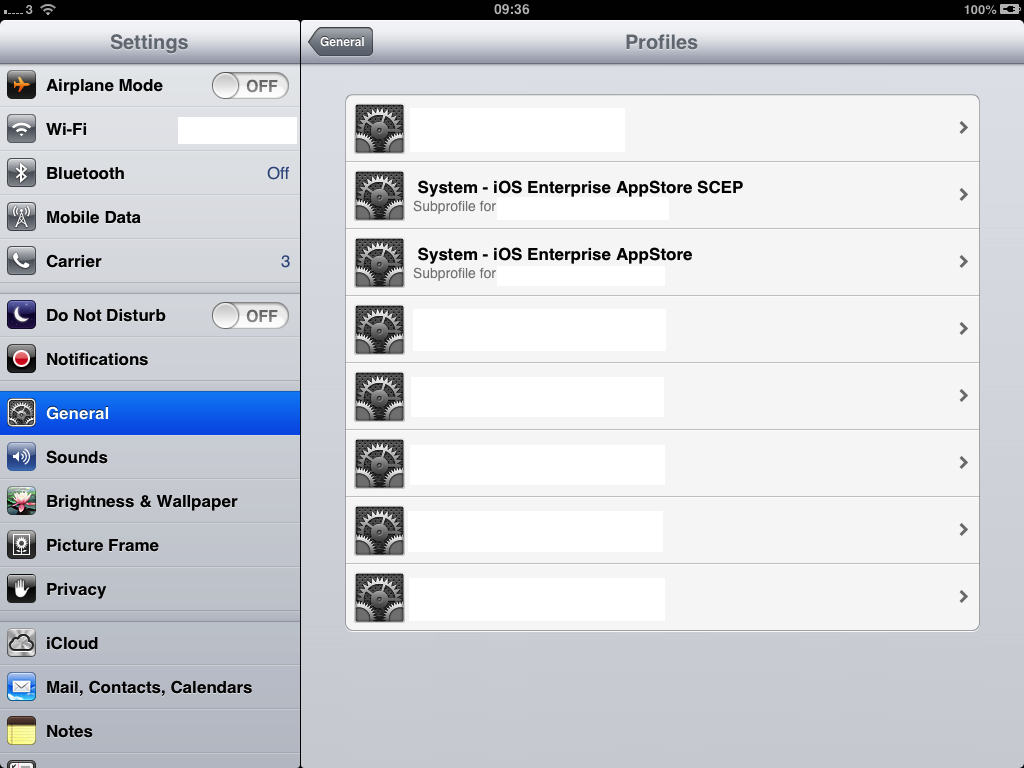
Highlight "General" on the left-hand side and then on the right scroll all the way down to the bottom and you should see a "Profiles" button - push it;

Settings > Profiles > Installed Profiles

This shows you a list of the profiles that have been installed on the iDevice. It's "likely" that all of these have been installed via MobileIron but there is no way to know for absolute certainty so perform the next steps at your own risk!

Touch on the top profile;

Profile Details
Touch "Remove". You'll be prompted for your Passcode, enter it and the profile will be removed.

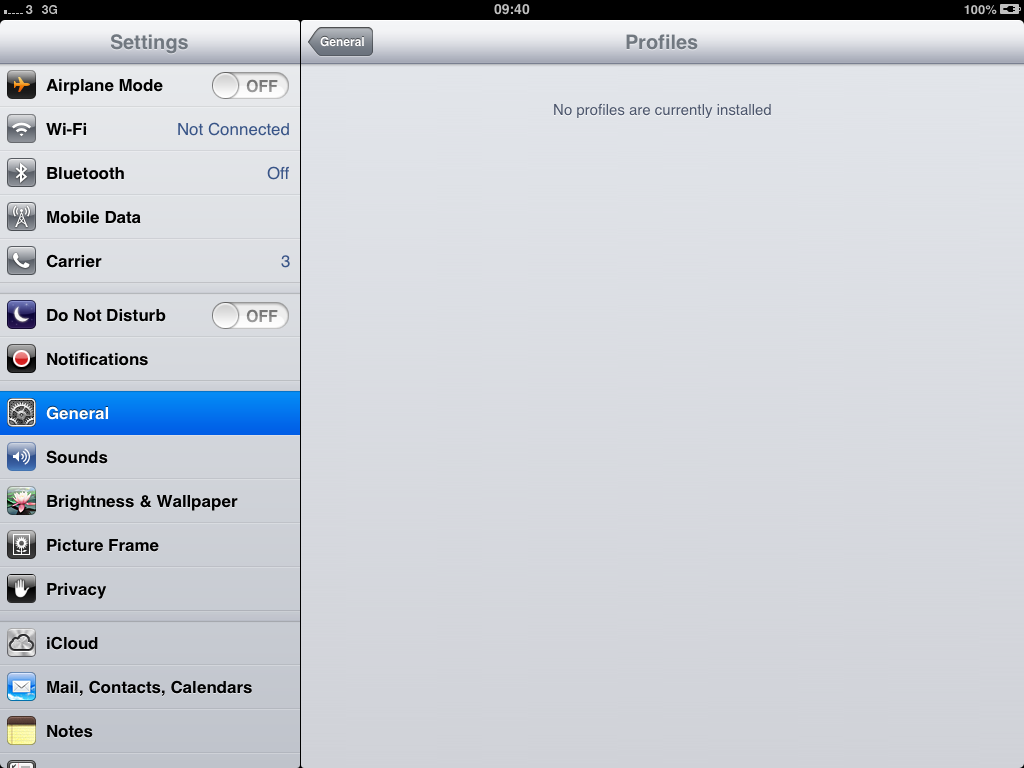
On the assumption that the top profile is the "master" profile all the other profiles that are dependant on it should be removed as well;

Settings > Profiles > None available
If you don't remove the existing profiles you can get into trouble when installing a new one so it's best to get them out of the way first. You could, alternatively, de-allocated the device on the old server but this will mean you will be blocking the users access until they perform these steps and - generally - it's better for them to do it when it's convenient for them rather than forcing them to do it when the next turn the iPad on!

Now let's setup the new configuration.

Locate the "App Store" application and open it.

Go to either the Featured, Top Charts, or Genius tabs (at the bottom) and enter “MobileIron” (note no space) into the search box at the top right;

MobileIron Application (in the App Store)
Touch INSTALL (or FREE).

The download and installation will only take a few minutes, you will be prompted for your iTunes password. 

Once it’s complete touch on “OPEN”.

MobileIron Configuration Screen
You'll now be prompted for a username (usually Active Directory), the server name, and password. Once you've entered these touch "Go". A dialog will appear;

MobileIron Login Dialog
Touch "OK".

After a few seconds you will see the standard MobileIron screen;

MobileIron Standard Screen
Touch "Settings" (on the bottom left);

MobileIron > Settings
Touch on "Check for Updates";

MobileIron > Settings > Check For Updates
Touch on "Update Configuration Profile".

A dialog of the "are you sure"-type will appear, touch "YES". A few seconds will pass and you'll be automatically taken to the Settings application and a dialog will appear;

Settings > Install Profile
Touch "Install". A dialog will appear;

"Install Profile" dialog
Touch “Install Now” and enter your Passcode.

A few seconds will pass and then a new dialog will appear;

Mobile Device Management Dialog
Touch “Install”

Touch “Done”

Go into the “Settings” application, then “General” then “Profiles”. Depending on the speed of your internet connection the other profiles will be downloaded from the server, if these profiles haven’t appeared within a few minutes then go back into MobileIron and repeat the steps from “Check for Updates”/ “Update Configuration Profile”.


Read More
Posted in iOS, iPad, iPhone, MobileIron | No comments
Older Posts Home
Subscribe to: Posts (Atom)

Popular Posts

  • Oracle EBS: Initialising the APPS Environment in PL/SQL
    How to set your user, responsibility, etc in PL/SQL to work with APPS functions This blog post covers a fairly simple PL/SQL block that allo...
  • Problems Installing SharePoint 2010 on Windows 2008R2 Server (Configuration Failed- error)
    This Knol is a bit of a departure for me in that I'm not suggesting a solution to a particular problem more I'm just sharing with th...
  • Oracle R12 Lot Genealogy and Noetix
    If, like me, you work in a process manufacturing* company one of the key things you need to worry about is lot genealogy. Put simply this is...
  • Noetix: Working With Item Cost Summaries
    If you are, like us, users of Oracle Process Manufacturing then you'll have written a lot of reports which rely on Item Costings (both f...
  • Oracle PL/SQL: Copying Column Comments From One View To Another
    This blog post gives a piece of simple SQL that will allow you to automatically copy the comments from one database view to another. In the ...
  • SSRS: Adding Calculated Fields To Data Sets
    This blog post covers an example of how to add a simple calculated field to a Dataset in SQL Server Reporting Services using Report Builder ...
  • Oracle PL/SQL: Stripping Comments From PL/SQL Packages
    Now I've worked in several places with different coding policies. Some have said "comment your code where the meaning isn't cle...
  • Oracle EBS: Scripting the Creation of Event-based Oracle Alerts in Oracle e-Business Suite
    This was possibly one of the hardest things I've ever had to do in a long time. Not because it's technically challenging, but becaus...
  • Noetix Customisations (Per Month)
    We are in the final stages of completing our R11 to R12 migration project and I thought it would be useful (because someone asked) to talk a...
  • Oracle EBS: Linking GL Lines to AP Invoice Distributions in R12
    This blog post gives some guidance as to how to link a GL Journal line in Oracle R12 back to its associated AP Invoice Distribution. NOTE: T...

Categories

  • .net framework
  • #Error
  • 1080p
  • 1248ub
  • 2007
  • 2008R2
  • 32-bit
  • 4.1.1
  • 64-bit
  • 720p
  • accellion
  • active directory
  • ad
  • airplay
  • All_Col_Comments
  • All_MViews
  • All_Objects
  • All_Source
  • All_Tab_Columns
  • All_Tables
  • All_Views
  • ALR_Action_Outputs_Pkg
  • ALR_Action_Sets
  • ALR_Actions_Pkg
  • ALR_Alert_Installations_Pkg
  • ALR_Alert_Outputs_Pkg
  • ALR_Alerts_Pkg
  • ALR_DBTrigger
  • amazon wishlist
  • aod
  • AP
  • AP_Credit_Card_Trxns_All
  • AP_Invoices_All
  • AP_Payables
  • AP_Vendor_Sites_Pkg
  • AP_Vendors_Pkg
  • app-v
  • apple
  • apple mac
  • apple maps
  • apple tv
  • application virtualisation
  • AR_Receivables
  • arbury carnival
  • arbury community centre
  • arbury court
  • arbury court library
  • army of darkness
  • army of darkness defense
  • asp.net
  • audiobooks
  • bar hill cambridgeshire uk
  • bar hill library
  • bbc micro
  • bids
  • biztalk 2009
  • british telecom
  • business intelligence development studio
  • business objects
  • c sharp
  • cambridge central library
  • cambridge regional college
  • cambridge station
  • cambridgeshire county council
  • cambridgeshire library service
  • Cast()
  • ccc
  • CDate()
  • citi 1
  • city councillor
  • classic pc
  • cmdb
  • commodore 64
  • Concurren Requests
  • configuration items
  • configuration management database
  • conservative
  • Count()
  • county councillor
  • crc
  • D600
  • data model
  • data source
  • database link
  • dataset
  • DateAdd()
  • DateSerial()
  • dba_jobs
  • DBA_Objects
  • DBA_Tab_Columns
  • dbms_job
  • DBMS_LDAP
  • dbms_refresh
  • dbo.AllUserData
  • dbo.Catalog
  • dbo.ExecutionLogStorage
  • Dell
  • district councillor
  • doodle.com
  • dos box
  • driver
  • e-Business Suite
  • easypush
  • EBS
  • email
  • epetitions
  • excel
  • ExecutionLog2
  • fa
  • FA_Fixed_Assets
  • fixed assets
  • FND_Form_Functions
  • FND_Form_Functions_Pkg
  • FND_Global
  • FND_Menu_Entries
  • FND_Menu_Entries_Pkg
  • FND_Menus
  • FND_Profile_Option_Values
  • FND_Profile_Options
  • FND_Program
  • FND_Request
  • FND_Users
  • FOI
  • Format()
  • freedom of information
  • Functional Administrator
  • GL_Daily_Rates_V
  • GL_Item_Cst
  • GL_Je_Lines
  • GL_Ledger
  • Gmail
  • GMD_Product_Development
  • GME_Process_Execution
  • GMF_OPM_Financials
  • GMF_Period_Balances
  • GMF_SLA_Cost_Subledger
  • gmfg0_item_costs
  • GMI_Onhand_Inv_By_Lot
  • GMI_Process_Planning
  • google
  • google dns
  • google knol
  • google maps
  • green
  • gremlin
  • group policy
  • guided bus
  • high definition
  • home hub 3.0
  • home sharing
  • hr.net
  • i-Expenses
  • ibm
  • iccid
  • iExpenses
  • IIF
  • IIF()
  • iis
  • iis 6
  • imei
  • information
  • installation
  • InStr
  • InStrRev
  • Internet Expenses
  • INV_Forecasts
  • INV_Inventory
  • INV_Item_Onhand_By_lot
  • inv_lot_transactions
  • INV_Onhand_Quantities
  • INV_Period_Close_Details
  • INV_Quantity_Tree_Pub
  • inv_reservations
  • iOS
  • iOS 6
  • ip address
  • iPad
  • ipconfig
  • iPhone
  • iPod
  • iresign
  • itunes
  • java
  • Join()
  • june
  • key flex field
  • Key Flex Fields
  • kff
  • labour
  • Latitude
  • Left()
  • level 50
  • Liberal Democrat
  • libraries
  • Lookup()
  • lot genealogy
  • materialized views
  • maximo
  • microsoft
  • microsoft app-v
  • microsoft exchange
  • microsoft paint
  • migration
  • MobileIron
  • Month()
  • MRP_Forecast_Dates
  • MRP_Forecast_Designators
  • msi
  • Mtl_Material_Status_History
  • MTL_System_Items_B
  • mtl_system_items_interface
  • mustek
  • N_Buffer
  • N_F_KFF_Flex_Sources
  • N_GSeg_Pkg
  • N_Gseg_Utility_Pkg
  • N_KFF_Ctlg_Grp
  • N_KFF_GL_Acct
  • N_KFF_Item_Loc
  • N_KFF_Mtl_Cat
  • N_KFF_Sys_Item
  • N_KFF_Sys_Item_Pkg
  • N_Role_View_Templates
  • N_View_Column_Property_Templates
  • N_View_Column_Templates
  • N_View_Columns
  • N_View_Query_Templates
  • N_View_Table_Templates
  • N_View_Templates
  • N_View_Where_Templates
  • N_Views
  • native-mode
  • ncm
  • NLS_Language
  • NLS_Territory
  • noetix
  • noetix customization maintenance
  • noetix views
  • Now()
  • OE_Order_Entry
  • OIE
  • open interface
  • open source software
  • opensource-it.com
  • opm
  • ORA-01795
  • Oracle
  • Oracle Alerts
  • oracle client
  • Oracle General Ledger
  • Oracle Internet Expenses
  • Oracle Payables
  • Oracle Process Manufacturing
  • oracle sql developer
  • orchard park
  • os x
  • os x lion
  • Outlook
  • parish councillor
  • Payables
  • pc line
  • pcl-3000
  • pl/sql
  • PO_Distributions_All
  • PO_Purchasing
  • PO_Vendor_Sites
  • PO_Vendors
  • port forwarding
  • quick guide
  • Recyclebin
  • Release 11
  • Release 12
  • remote server administration tools
  • Replace()
  • report builder 3
  • router
  • run as a different user
  • sap
  • scom
  • services
  • sharepoint
  • sharepoint 2007
  • sharepoint 2010
  • sharepoint content types
  • sharepoint document library
  • sharepoint integrated-mode
  • sharepoint native-mode
  • sla
  • smtp
  • sql server
  • sql server 2012
  • sql server analysis services
  • sql server integration services
  • sql server reporting services
  • ssas
  • ssis
  • ssrs
  • subledger accounting
  • subsidence
  • super hub
  • sysdate
  • system centre operations manager
  • telnet
  • test
  • textfile-search-and-replace
  • tnsnames.ora
  • town councillor
  • udid
  • ukip
  • umbraco
  • user accounts
  • User_Triggers
  • virgin media
  • vizual
  • vmware fusion
  • windows
  • windows 2003
  • windows 2008r2
  • windows 7
  • windows 8
  • windows 8 consumer preview
  • windows 8 server
  • windows update
  • windows vista
  • Wireless Drivers
  • wireless networking
  • wItem Installer
  • wnoetxu2.sql
  • wnoetxu5.sql
  • wnoetxu6.sql
  • work order
  • workflow builder
  • world of spectrum
  • xcode
  • XLA_Distribution_Links
  • xxk_mtl_cat
  • XXNAO
  • Year()
  • zool
  • zx spectrum

Blog Archive

  • ▼  2013 (43)
    • ▼  August (2)
      • Designing and Building your CMDB, Part 1: From Sys...
      • PL/SQL: Dynamically Building Your Data Archive
    • ►  June (1)
    • ►  May (2)
    • ►  April (8)
    • ►  March (3)
    • ►  February (14)
    • ►  January (13)
  • ►  2012 (63)
    • ►  December (2)
    • ►  October (1)
    • ►  September (4)
    • ►  August (4)
    • ►  July (5)
    • ►  June (6)
    • ►  May (3)
    • ►  April (4)
    • ►  March (10)
    • ►  February (11)
    • ►  January (13)
  • ►  2011 (65)
    • ►  December (8)
    • ►  November (8)
    • ►  October (7)
    • ►  September (9)
    • ►  August (9)
    • ►  July (9)
    • ►  June (6)
    • ►  May (2)
    • ►  March (1)
    • ►  February (5)
    • ►  January (1)
  • ►  2010 (9)
    • ►  December (1)
    • ►  November (3)
    • ►  September (1)
    • ►  July (1)
    • ►  June (1)
    • ►  February (2)
  • ►  2009 (9)
    • ►  December (1)
    • ►  November (1)
    • ►  August (1)
    • ►  July (1)
    • ►  May (3)
    • ►  March (1)
    • ►  February (1)
  • ►  2008 (11)
    • ►  November (2)
    • ►  October (1)
    • ►  July (1)
    • ►  May (1)
    • ►  April (2)
    • ►  February (1)
    • ►  January (3)
  • ►  2007 (4)
    • ►  December (4)
  • ►  2004 (1)
    • ►  December (1)
Powered by Blogger.

About Me

Unknown
View my complete profile